
Bench Summary & Direct Answer
Nine out of ten slow PCs that come into our workshop don’t need a $1,500 replacement: they need a €49 clean Windows reinstall. Factory pre-built computers come stuffed with trialware, telemetry, and background updaters that eat 40% of your RAM before you even launch a browser — which is great if you enjoy paying $1,500 for a digital paperweight.
Want to know how to install Windows 11 cleanly? Download the official ISO from Microsoft, create a bootable 8GB USB drive using Rufus or Media Creation Tool, boot into BIOS, format your target SSD partition, and finish setup. On a modern M.2 NVMe SSD, the entire process takes 15 to 20 minutes flat.
Table of Contents
Installing Windows 11 setup demanding a Microsoft account is like a local coffee shop requiring a background check before handing over an espresso. (Yes, I know Microsoft wants you to sign in with an account. No, forcing internet during setup is still annoying.)
[Takes a deep breath and puts down the anti-static wristband.]
I’m Alex, founder and Master Hardware Technician at WindowsFix. I’m 38, I’ve been on the repair bench for over 15 years, and I still double-check front panel header connectors three times. My wife rolls her eyes when I cable-manage our living room TV cables, my apprentices groan at least three times per bench job, and my 15-year-old calls my RGB lighting setup ‘boomer-tier cringe’. I can live with that. What I can’t live with is pre-installed bloatware choking a perfectly good computer.
Canonical Workshop Story: Why WindowsFix Was Founded (2019)
In 2019, my neighbour walked into my garage workshop with a receipt from a national big-box electronics retailer. They had charged him $199 for a ‘premium system tuneup’. When I popped the side panel off his PC, I found four years of caked dust inside the heatsink fins and thermal paste that had turned into dry, chalky cement.
All the retail store had done was run a free trial antivirus scan and hand him back his overheating desktop. That was the exact day WindowsFix was born on three non-negotiable rules: honest flat-rate pricing up front, zero pre-installed bloatware, and physical hardware deep-cleaning on every major job.
A pure Microsoft ISO clean reinstall is the single best €49 upgrade you can give your computer. Boot times drop by up to 35%, system stability locks in, and idle RAM usage drops from 4.2GB down to 1.6GB instantly.
How Long Does It Take to Install Windows 11? (Bench Benchmarks)
The time required to install Windows 11 depends heavily on your drive speed and installation method. Here are our exact workshop benchmarks measured across hundreds of clean setups:
| Hardware Setup | USB Creation Time | OS Copy & Install Time | First Desktop Boot |
|---|---|---|---|
| M.2 Gen4 NVMe SSD + USB 3.2 Drive | 4–6 Mins | 7–10 Mins | 12 Mins Total |
| SATA III SSD + USB 3.0 Drive | 5–8 Mins | 12–18 Mins | 20 Mins Total |
| Mechanical Hard Drive (HDD) | 6–10 Mins | 40–55 Mins | 60 Mins Total |
Rule of thumb: If your PC takes more than 30 minutes on an SSD, your USB drive is likely running in USB 2.0 mode or your installation media is corrupted.
Workshop Anecdote: The Brand-New $1,400 Bloatware Nightmare
A customer brought us a brand-new $1,400 gaming pre-built PC fresh from a big-box store. Out of the box, it took 2 minutes and 15 seconds to boot to the desktop and consumed 4.2GB of RAM at idle due to 16 pre-installed manufacturer updaters, trialware popups, and telemetry apps.
We performed a Clean Windows 11 Reinstall (€49 service) using an official Microsoft ISO, configured NVMe TRIM, and locked down background telemetry. The result? Boot time dropped to 7 seconds, idle RAM usage dropped to 1.6GB, and the PC finally performed like a $1,400 machine.
What You Need Before Starting a Clean Windows 11 Installation
Before wiping your drive, gather these essential items on your bench:
- USB Flash Drive: At least 8GB capacity (16GB recommended). Note that setup will format this USB drive completely.
- Official Windows 11 ISO: Downloaded directly from the official Microsoft Software Download page.
- Personal File Backup: Copy your Documents, Downloads, and Photos to an external drive or cloud storage. A clean install formats the targeted C: drive partition.
- Motherboard/WiFi Driver (Optional): Download your motherboard network driver onto a separate USB drive just in case Windows setup lacks native LAN/WiFi drivers.

Step 1: Create Official Bootable USB Media (Rufus vs Media Creation Tool)
You have two reliable options to build your bootable Windows 11 USB drive:
Option A: Microsoft Media Creation Tool (Standard Setup)
- Plug your 8GB USB drive into your PC.
- Run Microsoft’s Media Creation Tool executable.
- Select USB flash drive as the media option.
- Wait 5 to 10 minutes while the tool downloads files and creates the bootable drive.
Option B: Rufus (Recommended for Flexibility)
Rufus is our preferred bench tool because it allows custom setup tweaks before writing to USB:
- Download Rufus from rufus.ie.
- Select your USB drive under Device and choose your downloaded Windows 11 ISO under Boot selection.
- Click START. Rufus will pop up a customization menu.
- Check boxes to disable TPM 2.0 / 8GB RAM requirement, remove online Microsoft account requirement, and skip privacy questions.
Alex’s Bench Opinion: Beware Driver Cleaner Scamware
99% of ‘Driver Booster’ and ‘Registry Cleaner’ utility apps on the internet are scamware. They install adware, flag harmless registry entries as critical errors to demand subscriptions, and push untested drivers that trigger Blue Screens of Death (BSOD). Display Driver Uninstaller (DDU) in Safe Mode is the only proper way to wipe GPU drivers.
Step 2: How to Install Windows 11 on Unsupported CPU or Hardware
If Microsoft’s PC Health Check tells you your CPU isn’t on the official supported list or that TPM 2.0 is missing, don’t throw your PC away. Hundreds of older Intel 6th/7th Gen and AMD Ryzen 1000 systems run Windows 11 perfectly.
To bypass CPU and TPM checks during manual installation:
- Boot your PC from your Windows 11 USB installer.
- On the first screen (Language select), press
Shift + F10to open Command Prompt. - Type
regeditand press Enter. - Navigate to
HKEY_LOCAL_MACHINE\SYSTEM\Setup. - Right-click Setup, create a key named
LabConfig. - Inside
LabConfig, create DWORD (32-bit) values:BypassTPMCheck= 1BypassCPUCheck= 1BypassRAMCheck= 1BypassSecureBootCheck= 1
- Close Regedit and Command Prompt. Continue setup normally.
Step 3: Installing Windows 11 Without Internet or a Microsoft Account
Windows 11 setup locks you on the “Let’s connect you to a network” screen if no internet connection is detected. Installing Windows 11 without internet or bypassing the forced Microsoft account login is easy:
- When setup reaches the network connection screen, press
Shift + F10. - In the Command Prompt window, type the exact command:
OOBE\BYPASSNRO
Press Enter. Your computer will automatically reboot setup. When it returns to the network screen, you will see a new button: “I don’t have internet”. Click it, then click “Continue with limited setup” to create a clean offline local user account.
Step 4: Custom Drive Partitioning (Installing Windows 11 on a New SSD)
Installing Windows 11 over an old cluttered OS installation is like laying new carpet over a room full of legos. Here is how to perform a true clean partition format:
- When prompted for installation type, choose Custom: Install Windows only (advanced).
- Select each partition on your primary drive (Drive 0) and click Delete until only Drive 0 Unallocated Space remains.
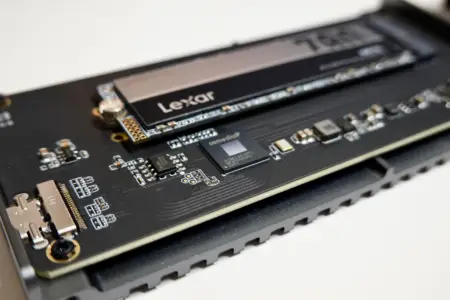
- Select Drive 0 Unallocated Space and click Next. Windows installer will automatically create the EFI System, MSR, and Primary partitions.
Workshop Case: The 45-Minute BSOD Driver Mystery
A customer called after experiencing constant Blue Screen of Death (BSOD) crashes whenever launching games. Another local repair shop had told them the graphics card was dead and quoted $600 for a GPU replacement.
Alex booted the PC into Safe Mode, ran DDU to wipe corrupted residual display drivers from three previous updates, and installed the latest official WHQL Nvidia driver suite. Total bench time: 35 minutes. Total cost: €29. The GPU was perfectly healthy.
Fix: SSD Not Showing Up During Setup
If setup says “No drives were found” on Intel 11th–14th Gen laptops or motherboards, Intel VMD (Virtual RAID) is enabled in BIOS. Download the Intel Rapid Storage Technology (RST) Driver, unzip it to your USB drive, click Load Driver in setup, and select the unzipped folder.
Step 5: Post-Install Setup: Fix Missing Drivers & Remove Startup Bloat
Once Windows reaches the desktop, setup is only half done. Follow these bench steps to lock in performance:
- Run Windows Update: Go to Settings > Windows Update and click Check for updates until all system patches are installed.
- Install GPU Drivers: Download official WHQL drivers directly from Nvidia, AMD, or Intel. If replacing an old GPU driver setup, check our GPU & System Driver Suite (€29) guide on using DDU in Safe Mode.
- Clean Startup Apps: Open Task Manager (
Ctrl + Shift + Esc), click Startup Apps, and disable apps like Spotify, Steam, or OEM updaters from launching on boot.
Free DIY Fixes to Try Before Spending Money
Before booking a service slot or buying new hardware, try these free diagnostic steps:
- Check Task Manager Startup Apps: Disable heavy background updaters that don’t need to launch with Windows.
- Check Temperatures: Download HWMonitor or AIDA64. If your CPU hits 95°C on idle, stop gaming immediately — your thermal paste has dried into chalk. Read our Thermal Cleaning & Repasting Guide.
- Run System File Checker: Open Command Prompt as Administrator and run
sfc /scannowfollowed byDISM /Online /Cleanup-Image /RestoreHealthto repair corrupted OS files for free.
Workshop Service Packages & Transparent Flat Pricing
At WindowsFix, pricing is fixed and written down before work starts. No ‘starting at’ tricks, no hidden diagnostic fees:
| Service Package | Flat Fee | Turnaround | Warranty | Key Included Services |
|---|---|---|---|---|
| GPU & System Driver Suite | €29 | 45 Mins | 60-Day Driver Guarantee | DDU safe-mode wipe, WHQL Nvidia/AMD drivers, BSOD troubleshooting |
| Thermal Repaste & ESD Dust Blowout | €39 | 1–2 Hours | 180-Day Thermal Warranty | ESD cleaning, Arctic MX-6 repasting, AIDA64 stress test |
| Clean Windows Reinstall | €49 | 1–2 Hours | 90-Day OS Guarantee | Official Win 10/11 pure ISO, NVMe TRIM, bloatware & telemetry removal |
| Complete Master PC Revival | €89–€100 | 2–3 Hours | 1-Year Satisfaction Guarantee | ESD cleaning, Thermal Grizzly Kryonaut repaste, pure Win 11, WHQL drivers |
Rather Have Our Workshop Handle It?
Skip the USB troubleshooting, driver headaches, and bloatware removal. Our workshop specialists deliver a pure, WHQL-certified clean installation in 1 to 2 hours flat.
€49 Flat Fee
Frequently Asked Questions About Windows 11 Installation
How long does it take to install Windows 11?
On a modern NVMe SSD, a clean Windows 11 installation takes between 12 and 20 minutes flat. Mechanical hard drives take longer, usually between 45 to 60 minutes.
Can I install Windows 11 on an unsupported CPU or without TPM 2.0?
Yes. You can use Rufus to create a bootable USB installer that automatically patches out the CPU, RAM, and TPM 2.0 requirements during setup.
How do I install Windows 11 without a Microsoft account or internet?
When setup reaches the network screen, press Shift + F10 to open Command Prompt and type OOBE\BYPASSNRO. Your PC will restart and let you pick ‘I don’t have internet’ to create a local user account.
Does installing Windows 11 delete all my files?
A clean installation formats your target drive partition, wiping existing files on that specific drive. Always back up your personal files to an external drive or cloud storage before starting.
Why does Windows setup fail to find my SSD drive?
Newer Intel 11th-14th Gen systems require Intel Rapid Storage Technology (RST) VMD drivers. Extract the RST driver to your installation USB and click ‘Load Driver’ during partition setup.
Should I upgrade Windows 10 to Windows 11 or do a clean install?
A clean install using an official Microsoft ISO is far superior to an in-place upgrade. It strips pre-installed OEM bloatware, fixes system file corruption, and lowers idle RAM usage.
About Alex (Lead Hardware Specialist & Founder)
Alex (38) is the founder and Master Hardware Technician at WindowsFix with over 15 years on the bench servicing gaming PCs, laptops, and custom workstations. Founded WindowsFix in 2019 out of frustration with retail tech support scams, he keeps an anti-static mat, Arctic MX-6 thermal paste, and a bootable Windows USB within arm’s reach at all times.
Need complete hardware maintenance alongside your fresh OS setup? Check out our Complete Master PC Revival (€89/€100) or read our guide on Thermal Cleaning & Repasting. We’ll clean out the dust, install a clean OS, and probably tell you a terrible RAM joke. Consider the joke a free bonus. Bring your PC by the workshop before your Windows installation loop makes you throw your mouse out the window.